IMPARGO Knowledge Center

Unleash the full potential of our software with our comprehensive Knowledge Center, offering detailed information on its functionality and features.

  • PLANNER: Truck, Toll & Tour Calculation
  • ORDERS: Order Management
  • ORDERS: Offer Management
  • FLEET: Execute With The DriverApp
  • DISPATCH: The Dispatch Board for Trucks
  • DRIVERAPP: Order Execution & Truck Navigation for Drivers
  • Managing Master Data
  • Integrations
  • Help Center

Multi-Currency Support

Table of Contents

  1. How Multi-Currency Support Works
  2. Set The Order Price In A Foreign Currency
  3. Where The Currency Appears
  4. Exchange Rates
  5. Invoices With Foreign Currencies
  6. Supported Currencies


Many transport companies run their business in euros but price certain transports in a local currency — a national HU → HU load negotiated in forint, a UK leg in pounds, or a Polish customer invoiced in złoty. This guide shows how to set a currency per order, how the converted values are displayed across the platform, and how foreign currencies carry over to PDFs and invoices.

1. How Multi-Currency Support Works

Multi-currency support lets you set the price of any transport order in a foreign currency, while your company account keeps the euro as its base currency. The price is stored exactly as you entered it — an order priced at 700.464,13 Ft. stays 700.464,13 Ft. — and IMPARGO shows the euro equivalent alongside it wherever you work.

Key Point
The euro remains your base currency. Costs, cost-calculation parameters, and internal totals stay in EUR. The selected currency applies to the order price and to the customer-facing documents created from it.


2. Set The Order Price In A Foreign Currency

You can select a currency wherever you set an order price: when creating or editing an order in the → Orders Module and in the price field of the → Planner Module.

Step 1: Access the Orders Module. 
Click on the 'O' icon (Tooltip: "Orders") on the left sidebar to open the → Orders Module, then create a new order or edit an existing one.

Step 2: Open the price field. 
In the "Order details" section, click the currency selector next to the Price field. The euro is preselected.

Step 3: Select the currency. 
Pick the customer's currency from the list — for example Hungarian Forint (HUF).

Step 4: Enter the negotiated price. 
Type the price in the selected currency. The euro equivalent appears directly below the field, and the price estimation is shown in the selected currency as well.

Animated demo: selecting Hungarian Forint in the Add Order price field, entering the price, and the euro equivalent appearing below the field


Note: Costs and the cost estimation remain in euros — your cost-calculation parameters (€/km, €/h, tolls) are not affected by the order currency.


3. Where The Currency Appears

Order Table

The orders table shows the price in euros with the order's currency on a second line, so you can read order lists with mixed currencies without losing the euro overview.

Animated demo: orders table and order details showing prices in euros and the order currency

Order Details

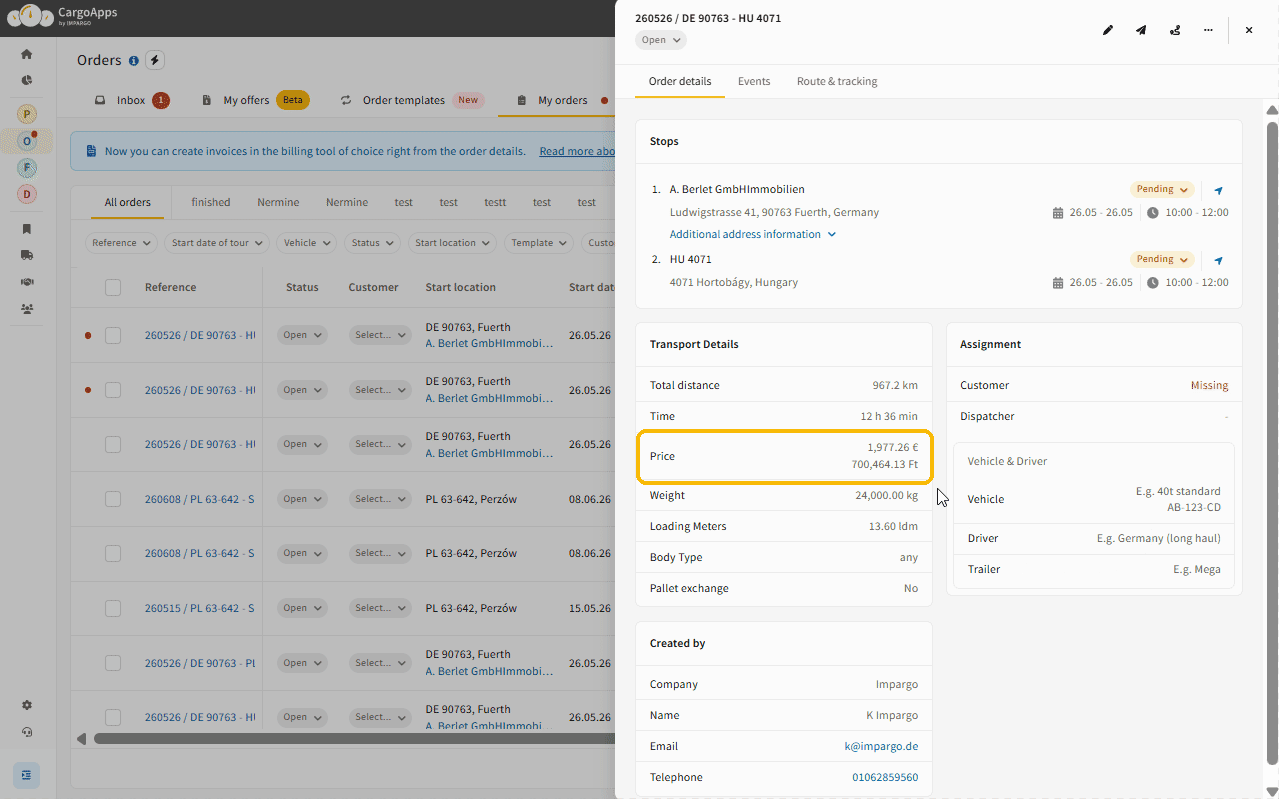
The order detail view shows both values in the Transport details section — the euro price and the price in the order's currency.

Order details drawer with the transport price displayed in euros and Hungarian Forint

Order PDFs

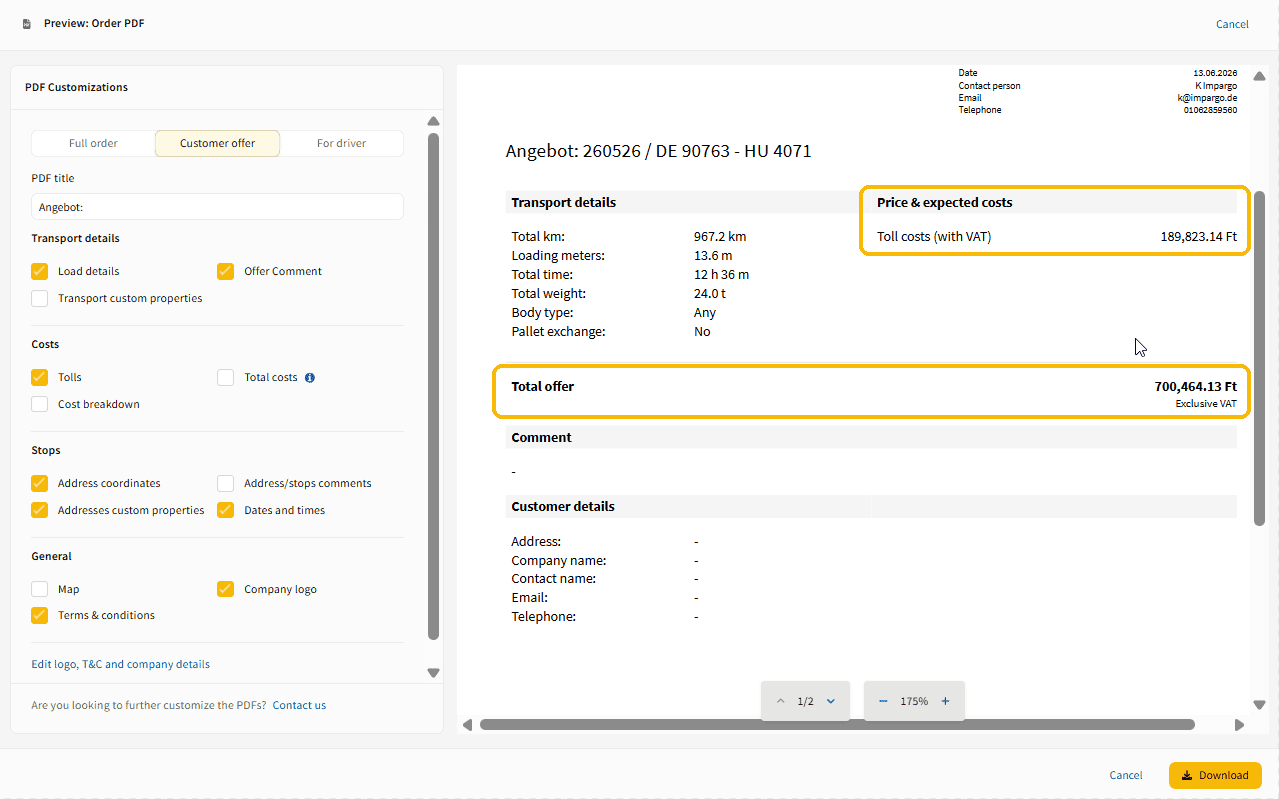
Customer-facing PDFs use the customer's currency: the customer offer PDF shows all values — toll costs, additional charges, and the total offer — in the selected currency. The full order PDF keeps the euro totals for internal use and shows the equivalent in the order currency next to the total price.

Customer offer PDF with the expected costs and the total offer displayed in Hungarian Forint


Animated demo: full order PDF with euro totals and the Hungarian Forint equivalent, and the customer offer PDF in Hungarian Forint

Planner Module


In the → Planner Module, click the currency selector next to the price in the footer to display the route price in another currency. The euro equivalent stays visible below the converted value, while costs and tolls remain in euros.

Animated demo: switching the price currency in the Planner Module footer with the euro equivalent shown below


4. Exchange Rates

Conversions use official reference rates published by central banks, such as the European Central Bank, sourced via the open Frankfurter exchange-rate service. IMPARGO applies the reference rate at the moment you create the order and stores the euro equivalent with it; editing the order refreshes it at the current rate. The stored value does not change on its own afterwards.

Example
When you create an order, IMPARGO converts the price at that day's reference rate and stores the euro equivalent with the order — here, 700.464,13 Ft. = 1.977,26 €. The forint price you agreed with the customer never changes, and the stored euro value stays fixed; it only updates if you edit the order, which re-applies the current rate.


5. Invoices With Foreign Currencies

When you create an invoice for an order, the order's price and currency are carried over to the connected billing system. You can review the currency next to the price in the invoice preview before creating the invoice.

⚠ Warning
Not every billing integration supports foreign currencies. SevDesk supports multi-currency invoices; Lexware Office (formerly lexoffice) does not — if the connected billing tool does not support multi-currency, invoices can only be created in euros.


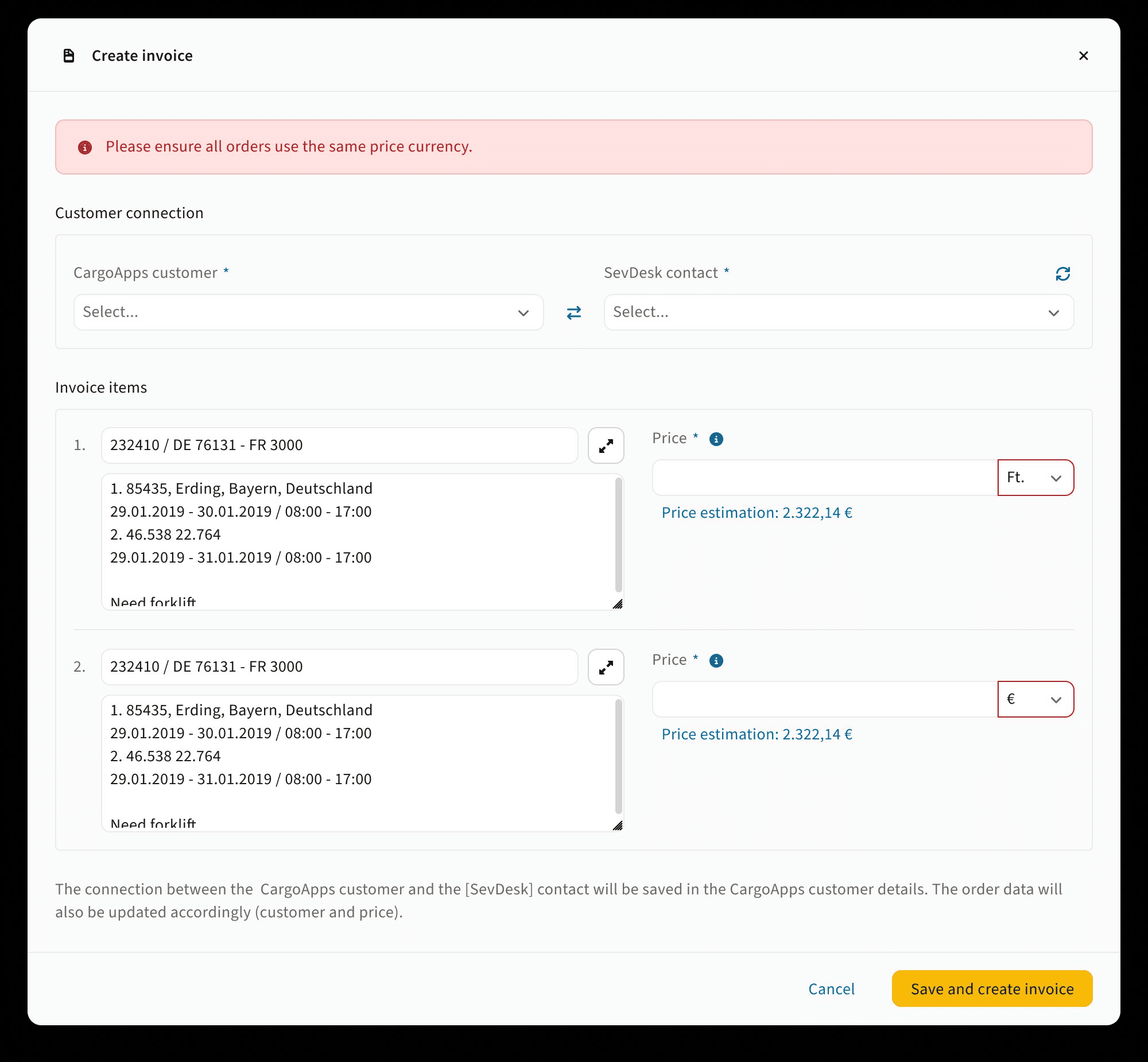
For bulk invoices, all selected orders must use the same price currency. If the currencies differ, IMPARGO blocks the invoice and highlights the orders to adjust.

Bulk invoice alert asking to ensure all orders use the same price currency


For the full invoicing workflow, see how to create single and bulk invoices and the billing integration guide.


6. Supported Currencies

The following currencies are available in the currency selector:

Currency Code Symbol
Euro EUR
British Pound GBP £
Hungarian Forint HUF Ft
Danish Krone DKK kr
Romanian Leu RON lei
Albanian Lek ALL L
Bosnian Mark BAM KM
Czech Koruna CZK
Macedonian Denar MKD ден
Norwegian Krone NOK kr
Polish Złoty PLN
Serbian Dinar RSD дин
Swedish Krona SEK kr
Swiss Franc CHF CHF
Turkish Lira TRY
Ukrainian Hryvnia UAH


If you need a currency that is not listed, please contact the IMPARGO customer service team.

Create Invoice

Track Transport Events


Impargo-logo

Digitalize your transport business overnight.

© IMPARGO 2026, All rights reserved.