Unleash the full potential of our software with our comprehensive Knowledge Center, offering detailed information on its functionality and features.
PLANNER: Truck, Toll & Tour Calculation
ORDERS: Order Management
ORDERS: Offer Management
FLEET: Execute With The DriverApp
DISPATCH: The Dispatch Board for Trucks
DRIVERAPP: Order Execution & Truck Navigation for Drivers
Managing Master Data
Analytics
Help Center
Integrations
Send Arrival Notifications (Automated)
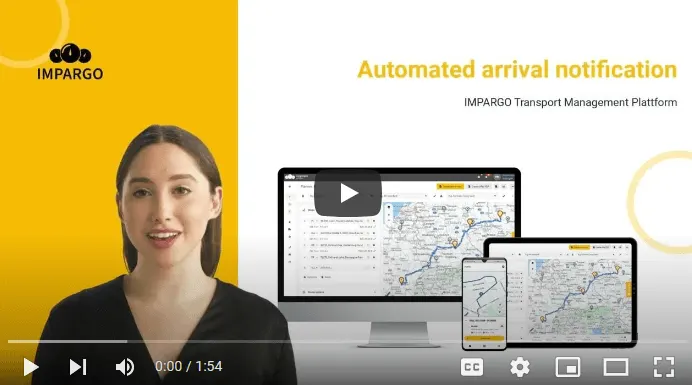
The tracking link for pick-up and drop-off locations keeps everyone in the transport informed about the order status and when the truck arrives.
With the IMPARGO transport order management platform, you can notify your customers by email for each stop automatically. Your dispatcher can also send these emails by hand. This guide shows how to set this up.
Send Automated Tracking Link to Pick-up or Drop Location
This feature sends automated email notifications to customers one hour before a delivery arrives, based on the truck driver’s ETA. To turn it on for each stop, open the → settings and activate “Automated Stop-E-Mail Notifications”. The first notification goes out when the tour starts, and another one is sent automatically one hour before the estimated planned arrival time.
Step 1: Open the Orders Module. Click the "O" icon (Tooltip: “Orders”) in the left sidebar to open the → Orders Module and select the “My Orders” tab.
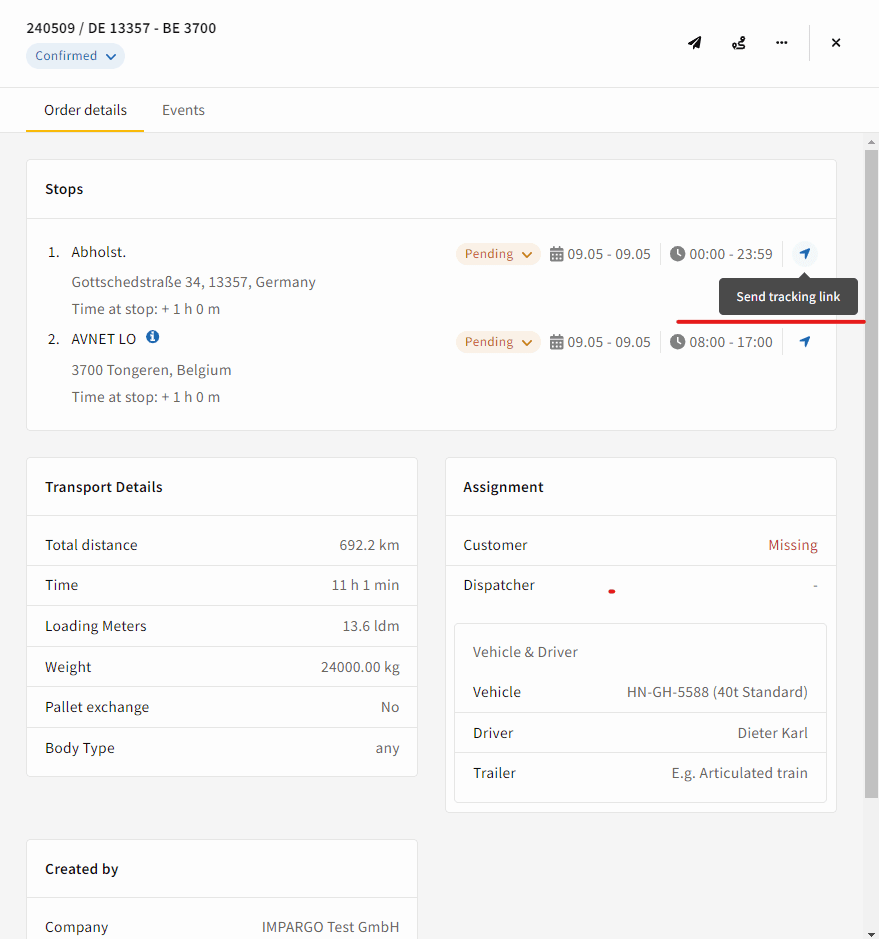
Step 2: Open the tracking email. Click the order to open its details. Then click the send icon (Tooltip: "Send tracking link") to the right of the stop. A view with the email appears.
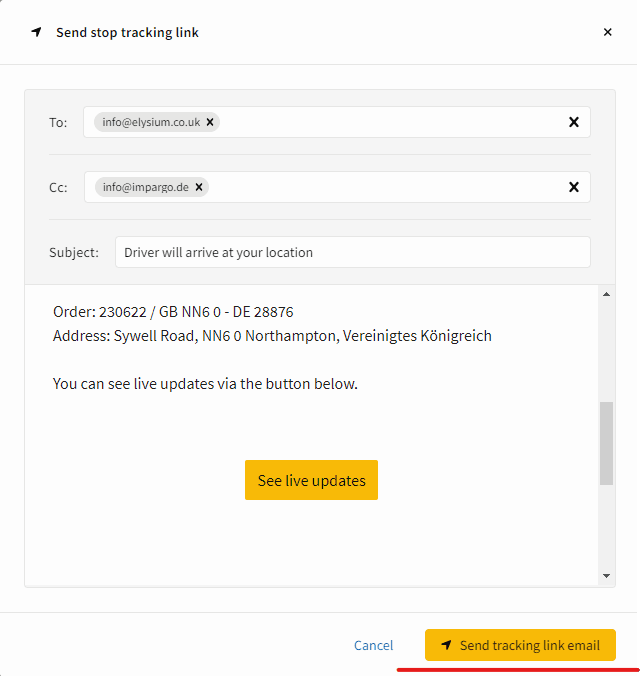
Step 3: Send the tracking link. In the email view, the location’s email address appears as the “To:” address if it is saved in the → addresses. Your company email (if saved) appears as the “CC:” address. Anyone with the link in this email can see the stop details and the current status, including the ETA.
Step 4: Turn on automated arrival notifications (optional). To send these emails automatically for each stop, activate “Automated Stop-E-Mail Notifications” in the → settings. The first notification goes out when the tour starts, and another one is sent automatically one hour before the estimated planned arrival time.
What the Stop Tracking Link Shows
The delivery time windows.
The estimated arrival time (if the DriverApp or telematics integration is used).
The delivery address.
The name of the carrier.
The load details with reference and loading units.