This article explains how you can use the AI-powered import function to automatically create transport orders from PDFs or images — without manual data entry.
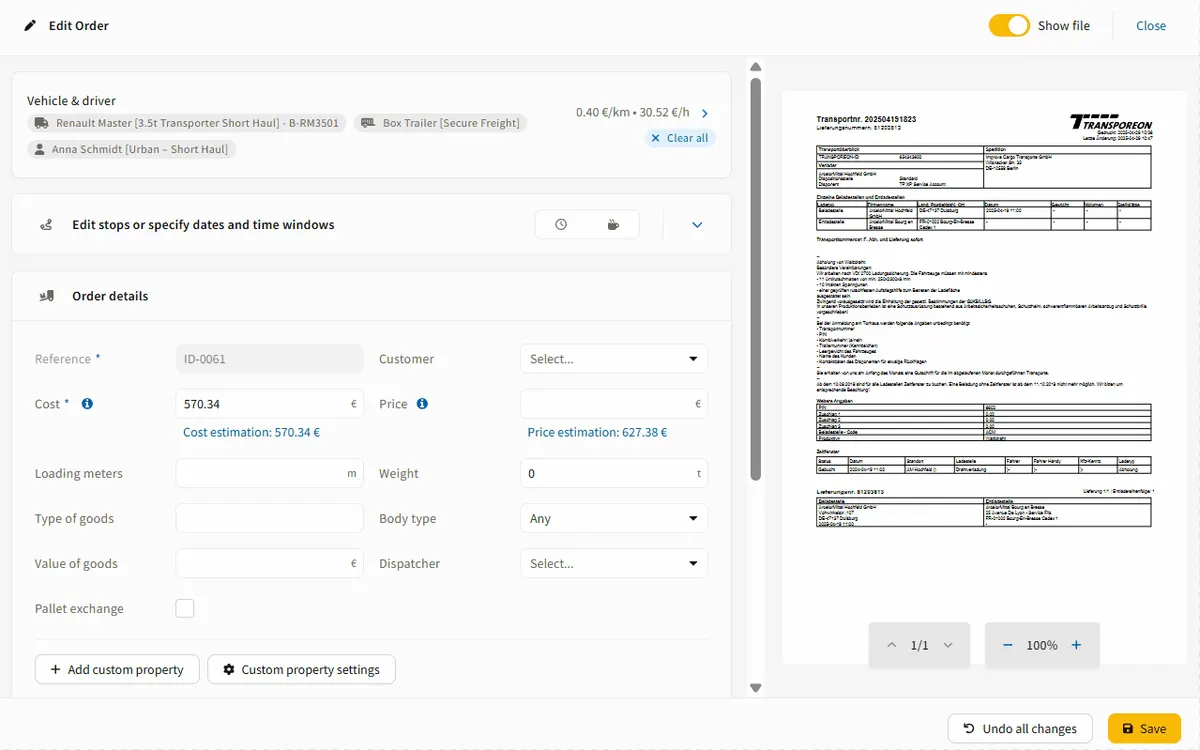
Here is an example of how an extracted PDF appears in the side-by-side view for review:
IMPARGO Knowledge Center
Unleash the full potential of our software with our comprehensive Knowledge Center, offering detailed information on its functionality and features.
This article explains how you can use the AI-powered import function to automatically create transport orders from PDFs or images — without manual data entry.
Here is an example of how an extracted PDF appears in the side-by-side view for review:
The AI-based import feature helps you convert order PDFs or handwritten images into ready-to-dispatch transport orders within seconds.
This removes the need to manually copy data from emails, freight exchanges (e.g., Timocom), shipper portals (e.g., Transporeon), or large partners such as DHL and Rhenus.
You can upload a PDF or an image with handwritten content. The system reads the file, extracts the relevant information, and automatically creates an order.
You can start the import in two ways:
This is the fastest way to create an order from a PDF.
Step 1: Open The Order Module.
Go to the My Orders section.
Step 2: Drag A PDF Or Image File Into The Orders Table.
Drop the file anywhere inside the order table area.
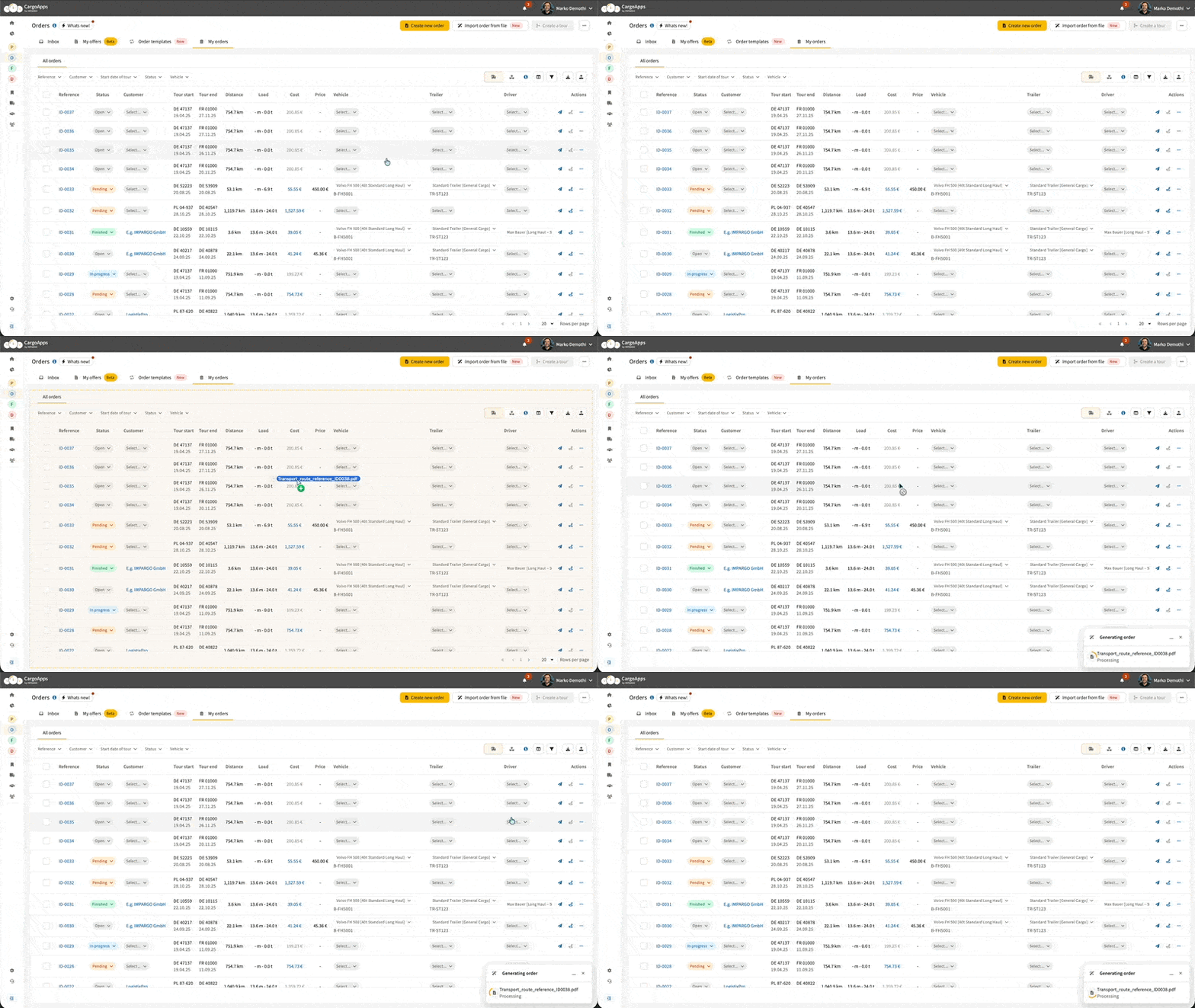
Step 3: Wait For The AI To Process The File.
The system automatically starts reading the document and creates a new order within a few seconds.
Step 4: Open And Review The Created Order.
Once the import is complete, the new order appears in your list.
Open it to review and adjust the extracted information using the side-by-side view.
Step 1: Open The Order Module.
Go to the My Orders section.
Step 2: Click Import Order From File.
Select the button in the top-right corner.
Step 3: Select The PDF File.
Choose the order file you want to import.
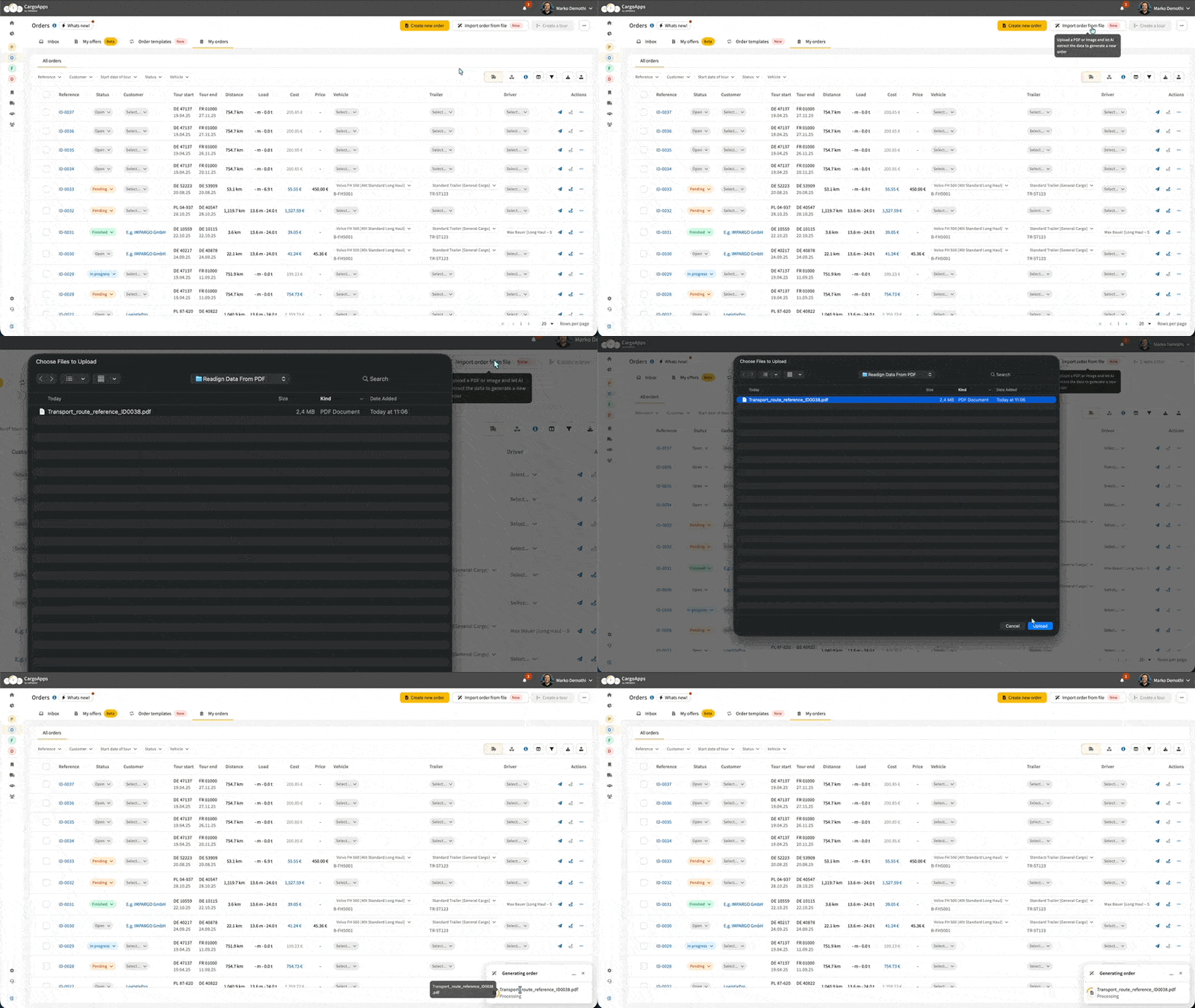
Step 4: Wait For The AI To Process The File.
The system needs approximately 15 seconds to extract the information and automatically create the order.
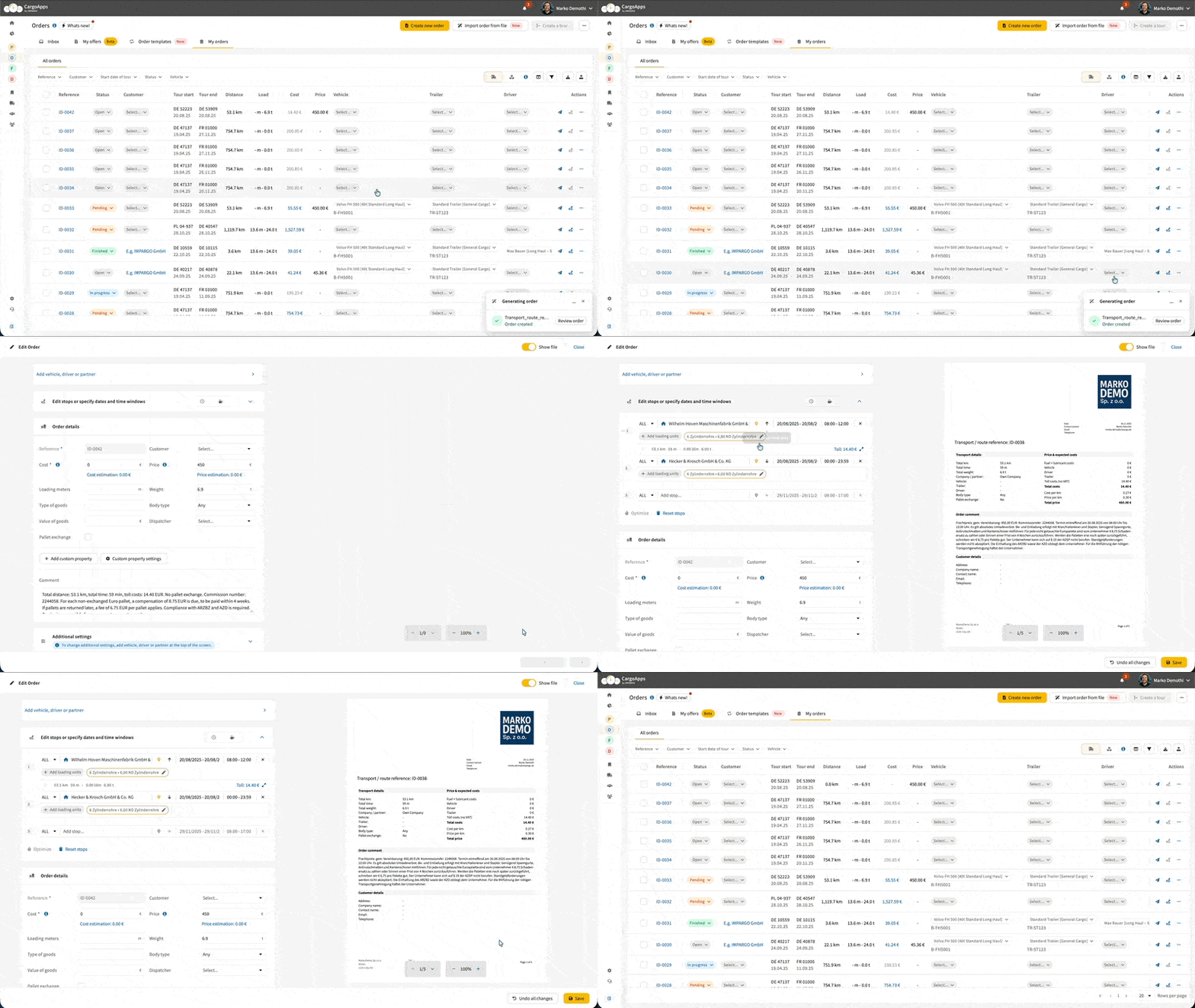
Step 5: Open And Review The Created Order.
Once the import is complete, the order appears in your list.
Open it to review and adjust the extracted information using the side-by-side view.
Note:
The AI currently reads and extracts the following information:
When the system extracts stop locations or customer names, it also:
This prevents duplicate entries and keeps your data consistent.
AI generally supports all languages.
For the highest accuracy, we currently recommend:
Results in other languages may vary depending on the complexity and layout of the document.
© IMPARGO 2026, All rights reserved.